


Linux Fundamentals: A Data Analyst in the Terminal
Linux Fundamentals · Part 1
The terminal stops being scary the moment you realize it's just asking questions. I've spent ten years querying data — this week I wanted to sharpen some of my Linux skills and found five commands that felt suspiciously familiar, and a few places where that familiarity ran out.
Here's something that surprised me before I ran a single command: I've been using Linux every day for years without knowing it. It powers the checkout tills at the store, the entertainment panels in cars — that last one genuinely caught me off guard — and critical infrastructure like traffic light controllers and industrial sensors. The "intimidating" operating system has been quietly running the world around me the whole time.
Linux itself is an umbrella term — a family of operating systems built on UNIX, kept open-source, and forked into distributions shaped for whatever job they're doing. Ubuntu and Debian are two of the most common; Ubuntu is already a familiar name to me. For this series, I'm on Ubuntu, which is light enough that the server edition runs on as little as 512MB of RAM.
(Quick fact-check on myself: I guessed the first Linux release was 1971. It was actually 1991. Noting it here so I remember.)
01
Meeting the Terminal
A lot of these systems ship without a graphical desktop; the way you interact with them is the terminal — purely text-based, and yes, intimidating at first glance. The first two commands reframed the whole thing for me. They're plain questions.
Command | What it asks |
echo | Output any text you give it |
whoami | Which user am I logged in as? |
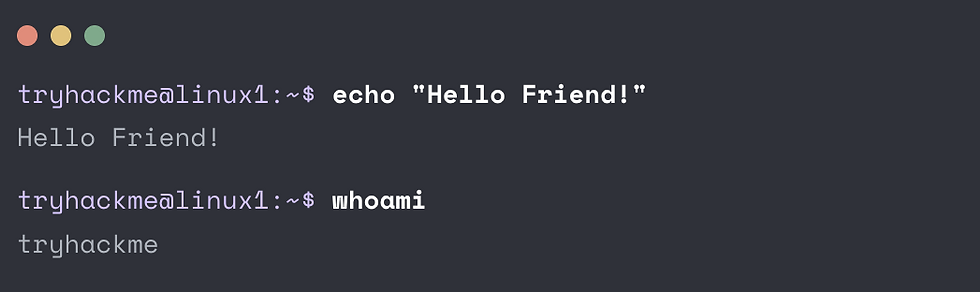
One small syntax note that's easy to trip on: a single word doesn't need quotes, but the moment your string has a space in it, wrap it in double quotes — echo Hello works, but you want echo "Hello Friend!".
02
Moving Through the Filesystem
Two commands are nice, but they don't get you anywhere. The next four are the ones that actually let you navigate — list what's here, move around, read files, and figure out where you are.
Command | Full name | Job |
ls | listing | Show what's in the current directory |
cd | change directory | Move into a folder |
cat | concatenate | Print the contents of a file |
pwd | print working directory | Show the full path of where you are |
The workflow clicks fast: ls to see what exists, cd to move into it, cat to read what's inside, and pwd whenever you lose track of where you've wandered. Two shortcuts worth banking early — you can peek into a folder without entering it (ls Pictures), and cd ~/ drops you back to your home directory from anywhere.
And a security note that stuck with me: usernames, passwords, config values, and flags all live in plain files that cat will happily print. On the defensive side, that's exactly why file permissions matter.
The data analyst in me noticed
pwd is SELECT current_database(). ls is browsing the schema to see what tables exist before you write a query. I've been orienting myself inside unfamiliar databases this exact way for a decade — figure out where you are, see what's around you, then read the thing you came for. The syntax is new. The habit isn't.
03
Searching at Scale — find and grep
This is where Linux started to feel powerful instead of just functional. Using cd and ls to hunt through folder after folder is fine until it isn't. Two commands automate the search entirely.
find — locate the file
find looks for files by name across every folder beneath you. If you know the name, you say so. If you only know the type, a wildcard (*) catches the rest.
grep — search inside the files
This is the one that landed hardest for me. Where find gets you to the right file, grep gets you to the right line. Point it at a web server's access log with 244 entries, ask it for a single IP, and it hands you back exactly the requests that matter — in one command.

Add -R and it goes recursive, searching every file and subdirectory below a path — handy when the thing you're after is scattered across a directory rather than sitting in one known file (grep -R "PRETTY_NAME" /etc/ is the classic example, surfacing your OS version out of the pile in /etc/).
The data analyst in me noticed
grep "81.143.211.90" access.log is WHERE ip = '81.143.211.90'. That's it. That's the whole translation. Filtering 244 rows down to the handful that match a value is the most basic, most-run query in my entire career — I just always did it in SQL against a table instead of at a prompt against a log.
The difference that matters: find tells you something happened somewhere; grep tells you exactly where. In a SOC, that gap is the whole job.
The tool changes, the question doesn't. I've been writing grep for years — I just called it WHERE.
Except — and this is the part I don't want to oversell — the analogy has edges, and I hit them fast. grep matches raw text. There's no schema, no column names, no data types telling it that 81.143.211.90 is an IP address rather than a string that happens to look like one. In SQL I lean on structure constantly; at the prompt, the file is just bytes and I'm pattern-matching against them. A filesystem isn't relational either — folders nest, they don't join — and there's no query planner quietly optimizing a clumsy command or warning me before I overwrite a file. The terminal does exactly what I say, immediately, whether or not I meant it.
That gap is the useful part. Knowing which is which is what tells me where I actually need to learn something new versus where I'm just relabeling something I already know.
04
Redirecting Output — the operators
The last piece of Part 1 covered shell operators — the small symbols that combine and reroute commands. Four are worth knowing right away.
Operator | What it does |
& | Run a command in the background so you can keep working |
&& | Chain commands — the second only runs if the first succeeds |
> | Redirect output into a file (overwrites what's there) |
>> | Redirect output into a file (appends to the end) |
The > versus >> distinction is one character between "oops" and "phew." Redirect with > and you overwrite whatever was in the file; use >> and you append instead, leaving the existing contents intact.

A note on cost — for anyone doing this on a budget
Full transparency, because I know a lot of you are watching your spend the same way I am: this room has three sections, and only the first is free. I'm learning at my own pace right now, with no deadline forcing my hand — so I made the call to pick up deeper material through the platform's many free rooms and my own labs instead.
That's not a knock on premium; it's a real path. If you're changing careers and every subscription competes with something else in the budget, know that you can build genuine command-line fluency on the free tier and fill the gaps yourself.
Part 1, in one screen
Linux is everywhere — cars, tills, infrastructure — and it's a UNIX-based family, not one OS
echo and whoami — output text, confirm your user
ls / cd / cat / pwd — list, move, read, and locate yourself
find gets you to the right file; grep gets you to the right line
> overwrites, >> appends — mind the difference
None of this was as daunting as the blinking cursor made it look. The commands that felt foreign on Monday are already turning into muscle memory — and more than a few of them turned out to be things I've been doing in SQL the whole time.
Next up · July 31
Splunk — where grep grows up
Filtering one log at a prompt is the foundation. Next I'm stepping into Splunk, where that same instinct — search the data, surface what matters — runs across millions of events at once. The question stays the same. The scale changes everything.


Comments